Material Settings

- Return to Home Screen
- Saves your current settings to the LMS server as default settings for use with all devices on first run.
Important Note.
All Material skin settings are browser / device specific and are stored locally on your device
If Material skin is updated then you may need to clear your browser's cache to pick up changes
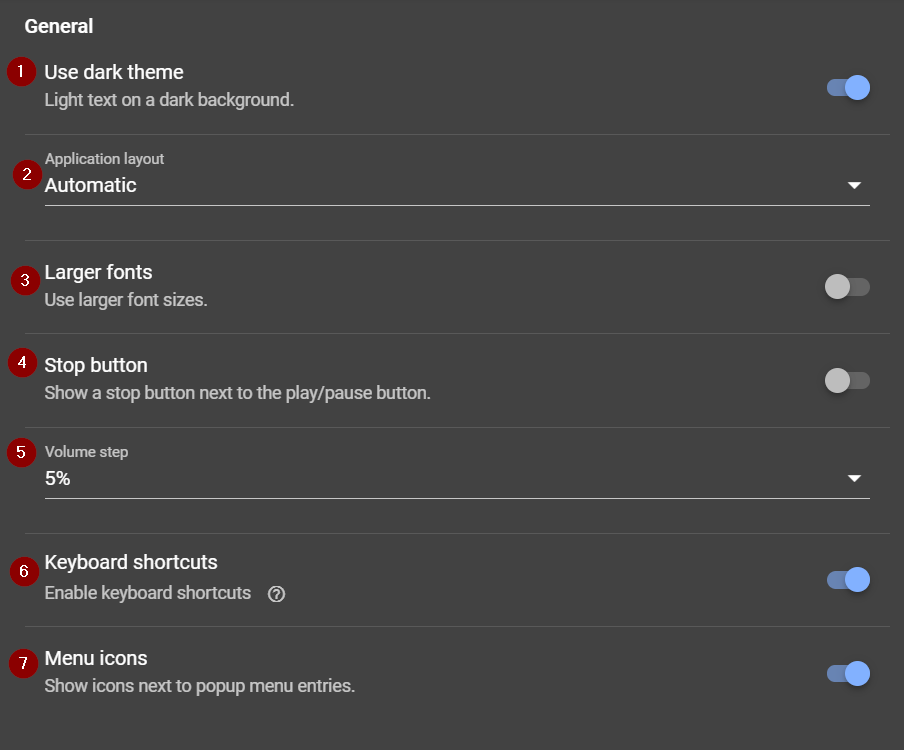
- Toggles display between Dark & Light modes
- Toggles between Desktop, Mobile & Automatic modes - Automatic will display either Desktop or Mobile depending upon browser window size.
- Toggles larger fonts on or off - very useful on a small screen mobile device
- Stop button
If you listen to live Internet Radio you will know that pausing a stream is not the same as stopping it.
Enabling this provides a Stop button next to Play / Pause that will stop a live stream. When you hit Play again the stream rebuffers to its real time position.
Desktop
Mobile
- Determines the level of volume change when you move the volume slider.
- Keyboard shortcuts
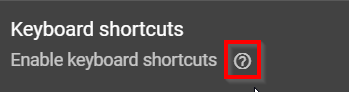
Click ? to view a list of available keyboard shortcuts
Alt+▲ • Increase volume
Alt+▼ • Decrease volume
Alt+< • Previous track
Alt+> • Next track
Spacebar • Play/pause
Home • Go to homescreen
Ctrl+< • Go back
Ctrl+F • Search
Ctrl+Shift+P • Play now
Ctrl+Shift+A • Append to queue
Ctrl+Shift+C • Add favorite, podcast, or preset
Ctrl+Shift+M • Create folder
Ctrl+D • Show current track information
Ctrl+Shift+E • Expand now playing
Ctrl+S • Save queue
Ctrl+X • Clear queue
Ctrl+M • Move queue to another player
Ctrl+U • Add URL to queue
Ctrl+T • Scroll queue to current track
Ctrl+G • Settings
Ctrl+P • Player settings
Ctrl+E • Server settings
Ctrl+I • Information
Ctrl+A • Manage players
Ctrl+B • Synchronise
Alt+N • Switch to Nth player
Enabled / Disabled
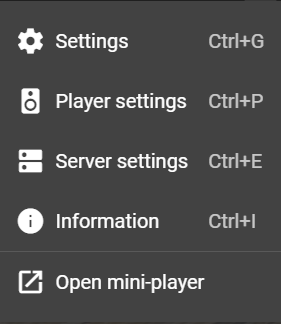
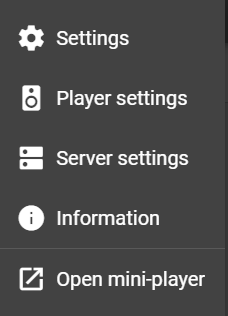
- Toggles display of icons on Context Menu
Enabled / Disabled
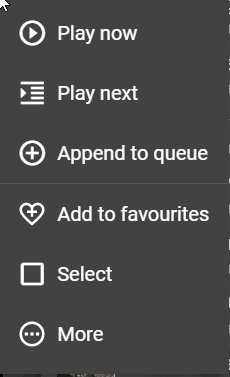
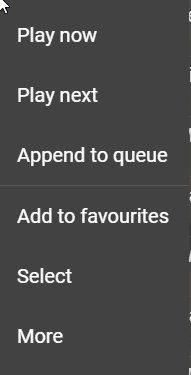
- Self explanatory
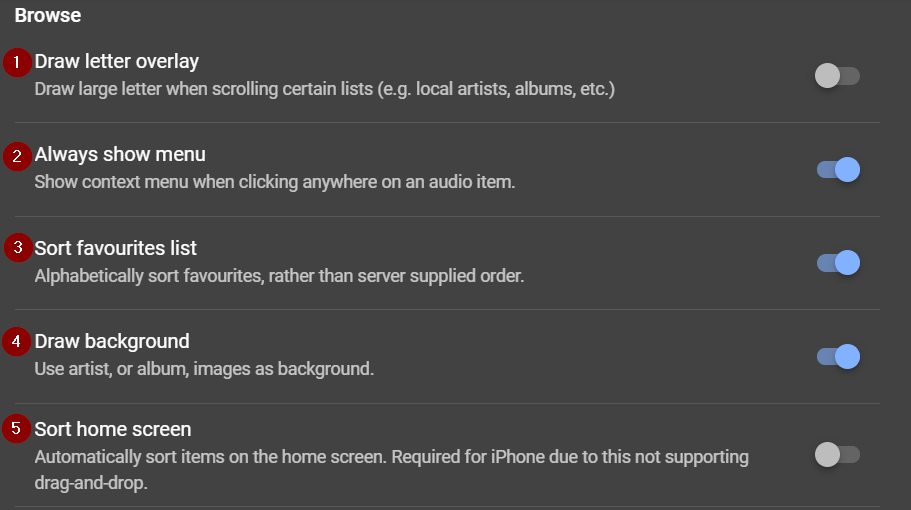
- Toggles whether Context Menu is shown from click on audio item
If enabled this will bring up the Context Menu when you click anywhere on an audio item. - Favourites can be placed in folders and sorted however you like on the server side. This suppresses that behaviour and substitutes an alphabetical listing with folders at the top.
- Renders an artist picture if available or an album cover as a background to the Queue area and Expanded Now Playing areas
- iPhone only. Items on the Home Screen can be sorted by drag-and-drop except on iPhone.
Selecting this option in Material running on an iPhone will automatically sort home screen items for you.
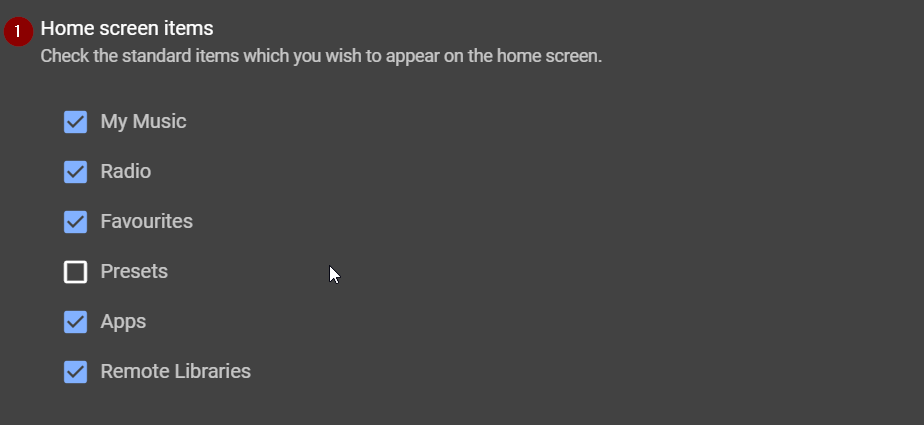
- Determines which standard LMS items are displayed on the Home Screen.
These can subsequently be re-ordered via drag-and-drop except where Material is running on an iPhone.
See also Pinning
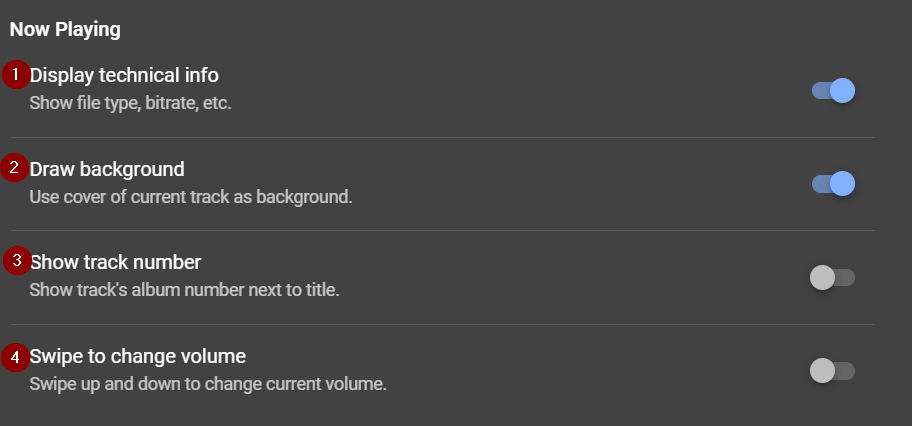
- Toggles display of file type, bitrate in Now Playing area
- Toggles display of cover art as background in Now Playing area on Mobile and Expanded Now Playing Area on Desktop
- Toggles display of track number in Now Playing area.
Note. Music streamed from online sources such as Spotify do not have track numbers so having this switched On is a good indicator of whether DSTM is playing local or streamed music. - Only usable on mobile devices or touch screen PCs.
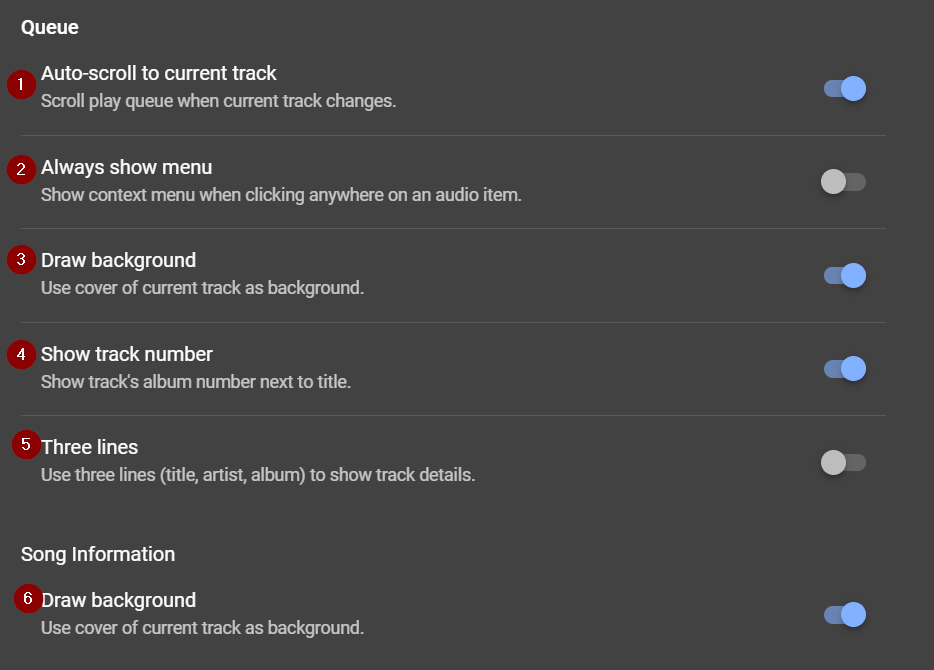
- Toggles auto-scroll to current track
If enabled this will scroll your play queue automatically to the current track when the track changes
The current track is highlighted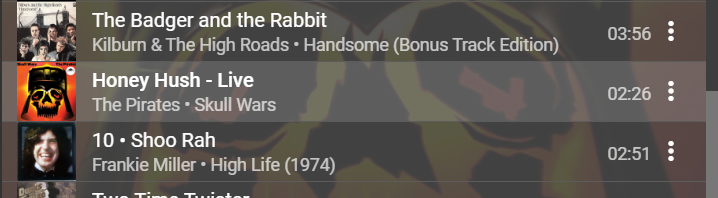
-
Toggles whether Context Menu is shown from click on audio item
If enabled this will bring up the Context Menu when you click anywhere on an audio item rather than requiring you to use the three vertical dot access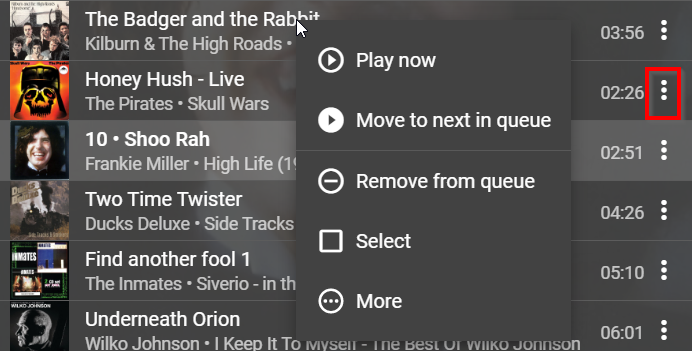
- Toggles background cover art
If enabled cover art of the currently playing track will be displayed as background art in the Queue area - Toggles display of track number
If enabled will attempt to show the track number in the Queue area.
Note. Music streamed from online sources such as Spotify do not have track numbers so having this switched On is a good indicator of whether DSTM is playing local or streamed music. - Toggles display of three lines per item in Queue area
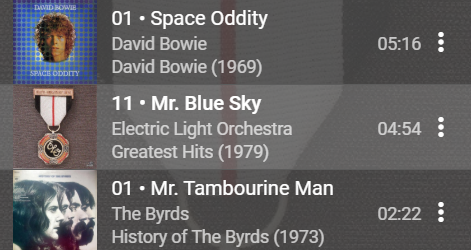
- Toggles display of cover art of currently playing track as background to Song Information
Note. Only visible if Music & Artist Information plugin is installed.
Created with the Personal Edition of HelpNDoc: Free HTML Help documentation generator